
User Athentication
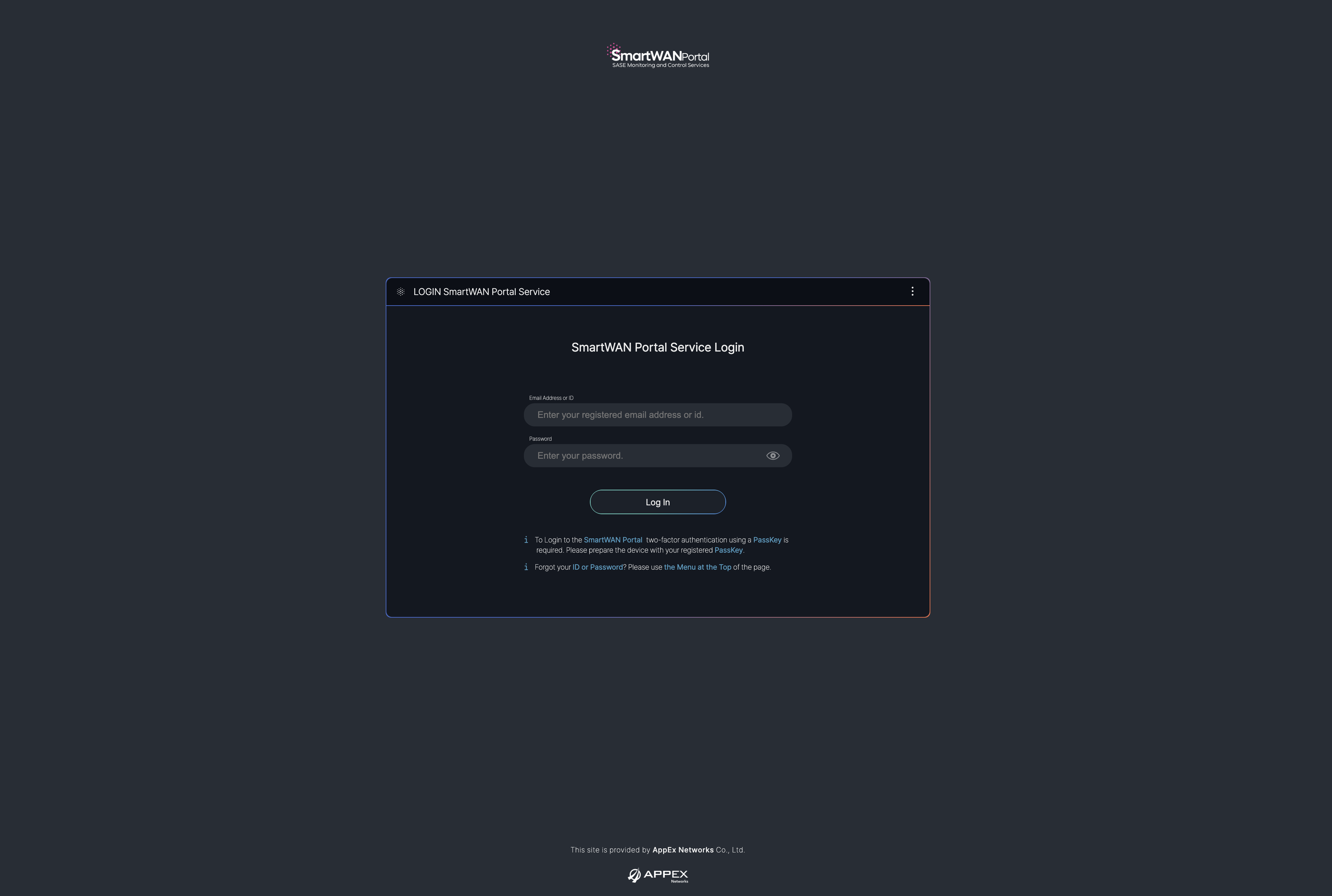
SmartWAN Portal Login
When you access the SmartWAN Portal, you will encounter the login screen as shown in the image below. This screen allows users to authenticate and access the portal's features.
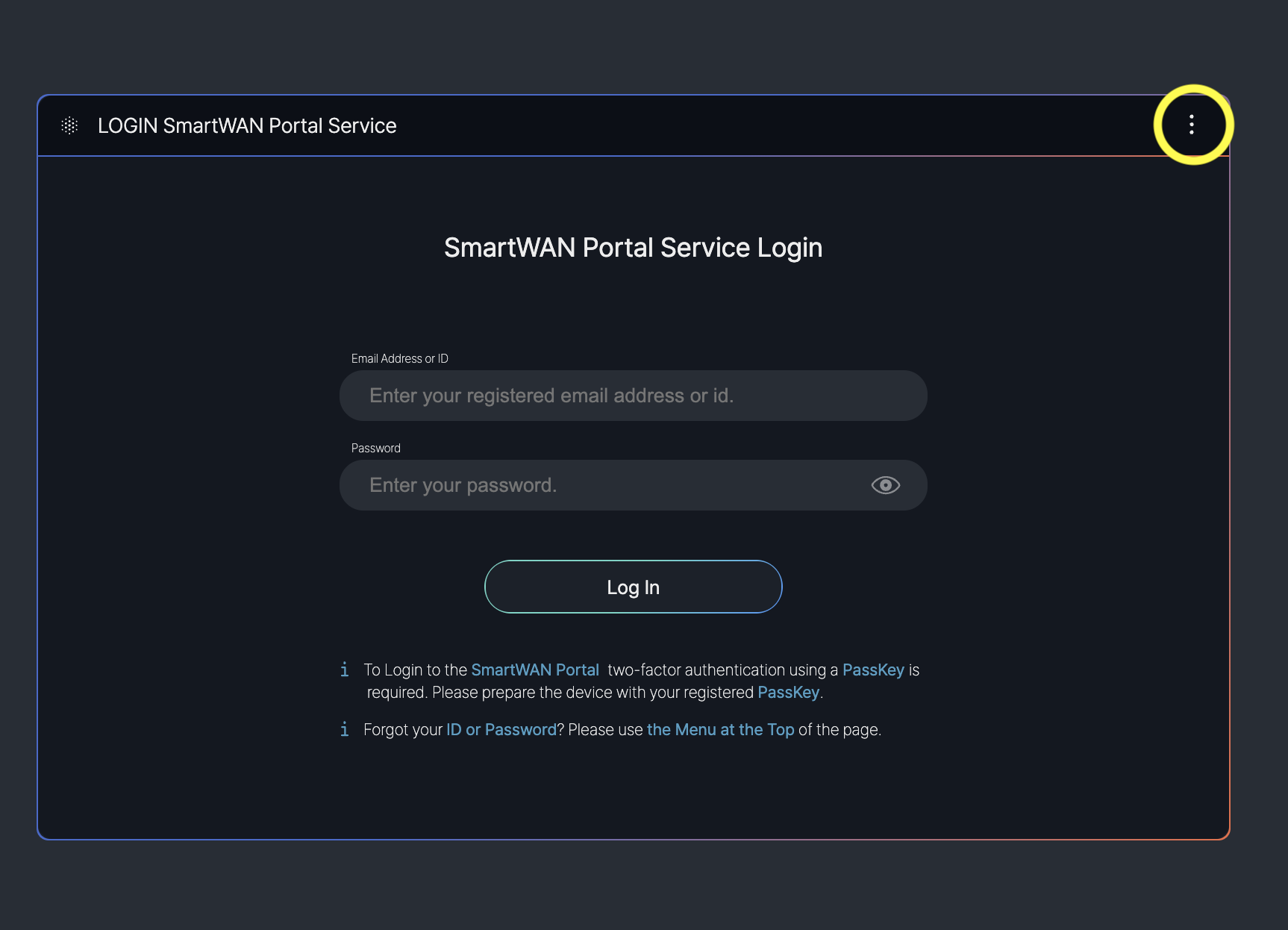
Input Fields:
- Email Address or ID: A field where users enter their registered email address or ID (e.g., "Enter your registered email address or ID").
- Password: A field for entering the user’s password (e.g., "Enter your password"), with a visibility toggle icon to show or hide the password.
Additional Authentication Options
- Top-right corner of the screen.
By clicking the "⋮" (three dots) icon in the top-right corner, users can access a detailed menu related to user authentication. This menu provides additional options for managing login settings or troubleshooting access issues.
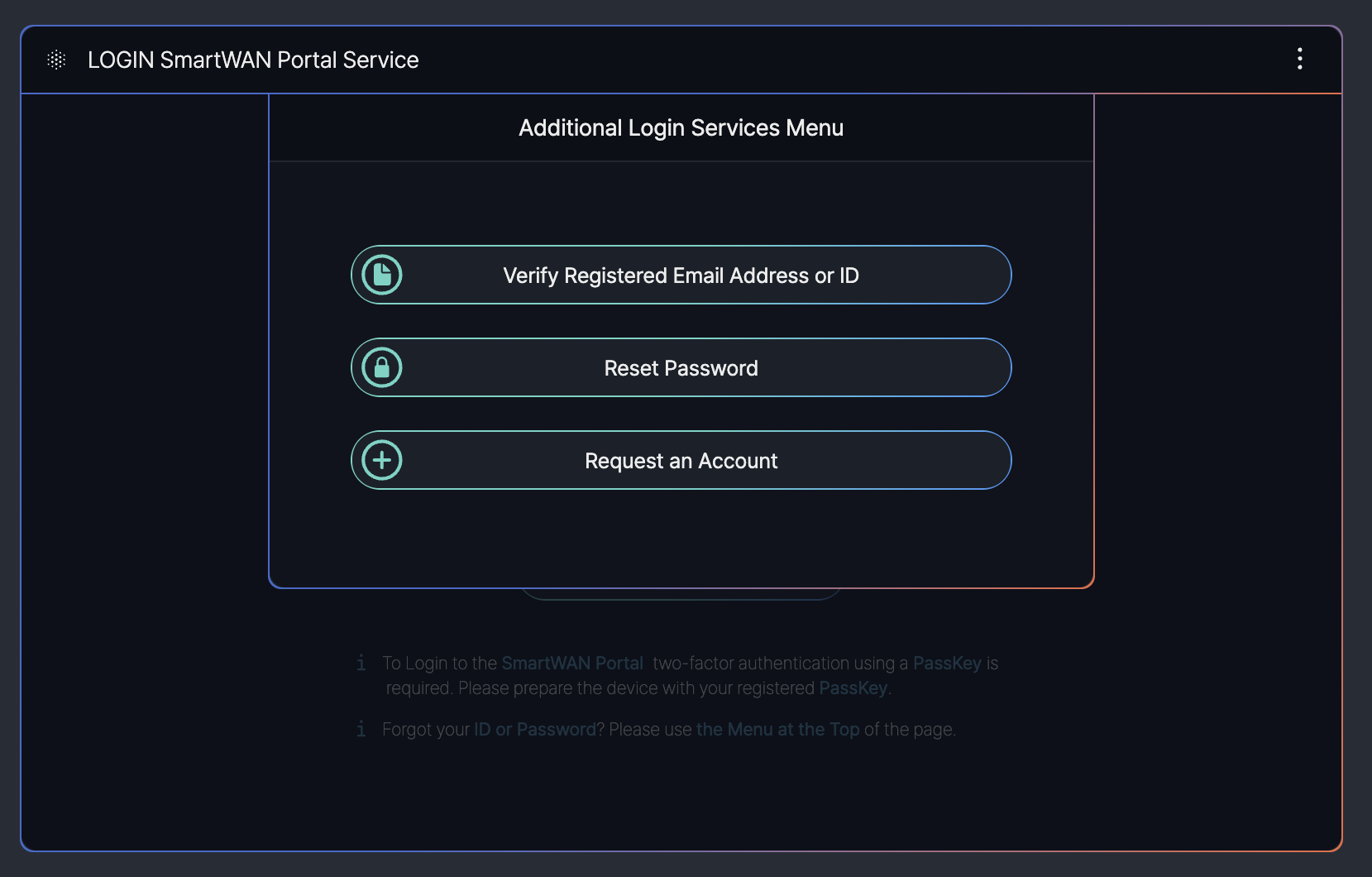
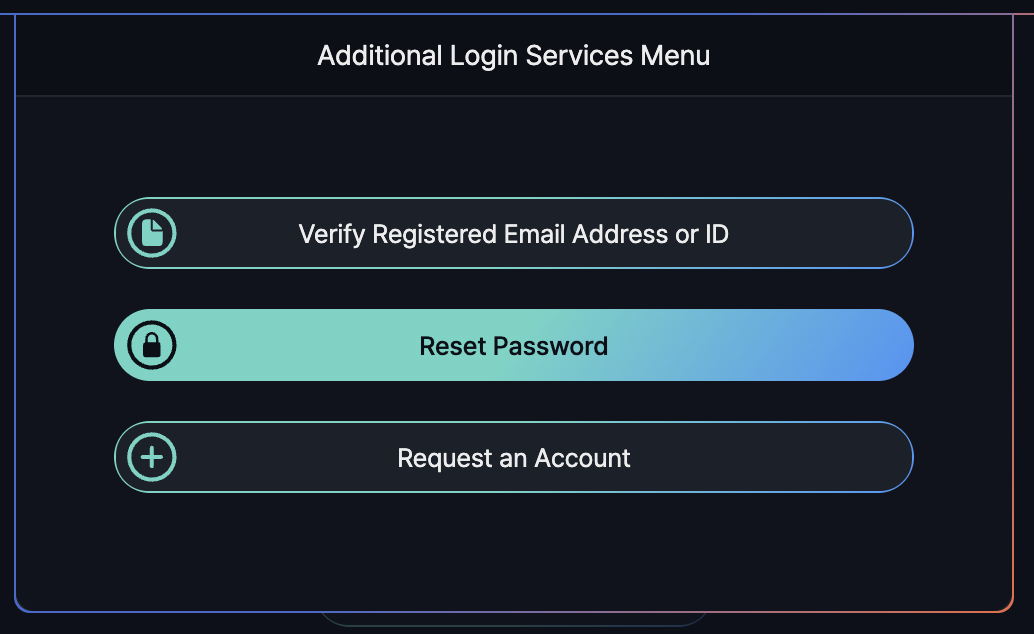
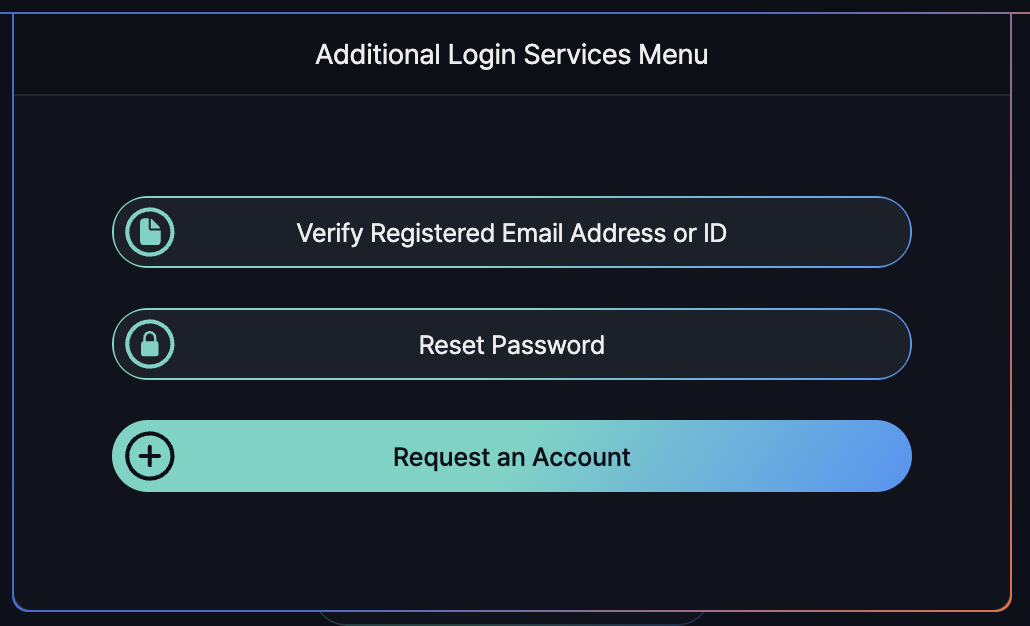
The "Additional Login Services Menu" provides options to assist users with authentication-related tasks on the SmartWAN Portal login screen. This menu can be accessed by clicking the vertical "⋮" (three dots) icon in the top-right corner of the login screen.
- Verify Registered Email Address or ID: Allows users to verify their registered email address or ID to ensure they are using the correct credentials for login.
- Reset Password: Provides an option for users to reset their password if they have forgotten it or need to update it for security reasons.
- Request an Account: Enables new users to request an account if they do not already have one, initiating the account creation process.
The features described above are currently in the prototype stage and are scheduled for future implementation.
Verification User
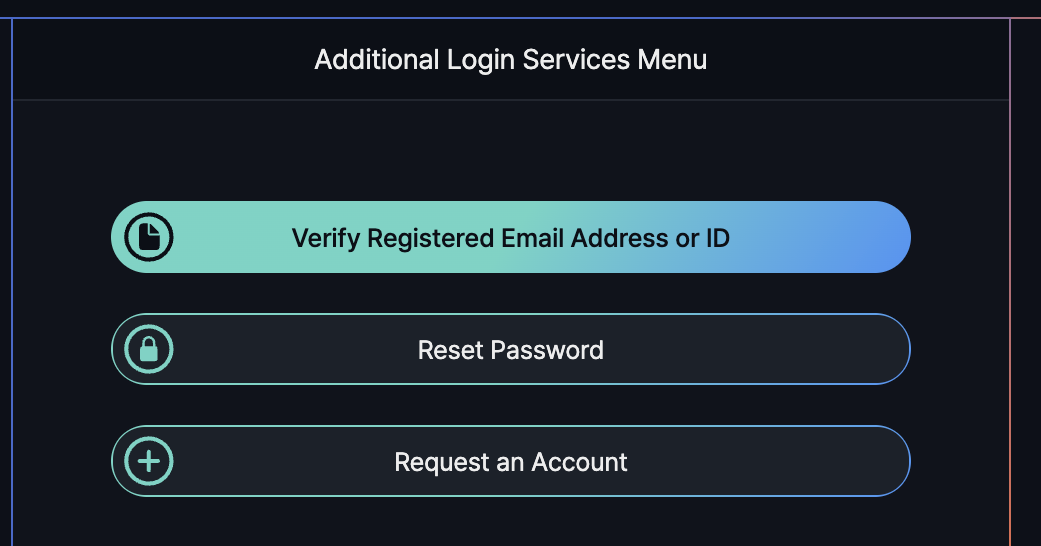
As part of the user verification process in the SmartWAN Portal, the "Verify Registered Email Address or ID" option allows users to confirm their credentials using a PassKey.
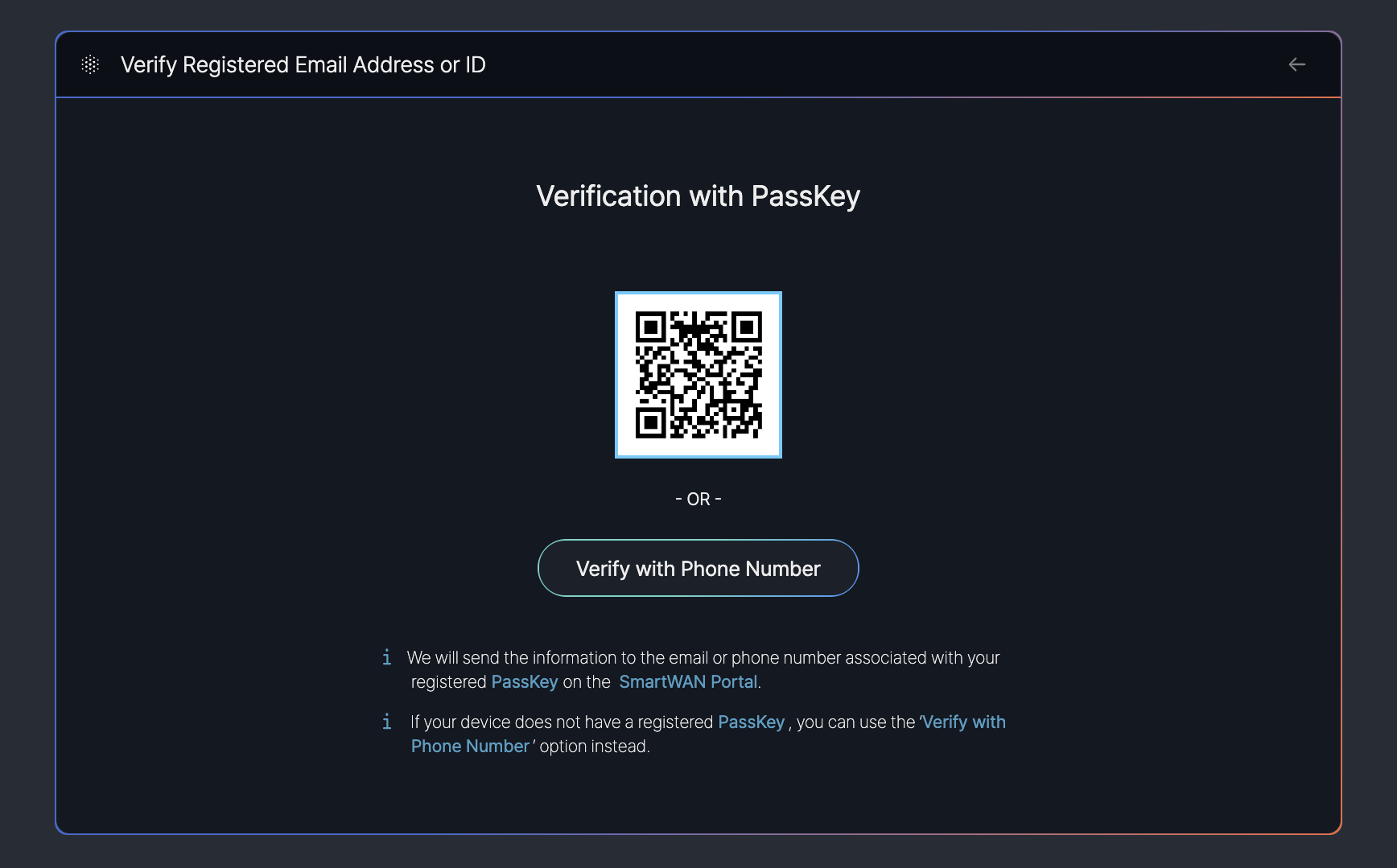
PassKey Verification:
- QR Code: A QR code is displayed for users to scan with a device that has a registered PassKey, enabling secure verification.
- Verify with Phone Number Button: An alternative "Verify with Phone Number" button is provided for users whose devices do not have a registered PassKey.
ResetPassword
After selecting the "Reset Password" option from the "Additional Login Services Menu" on the SmartWAN Portal, users are directed to the following screen to verify their identity before resetting their password.
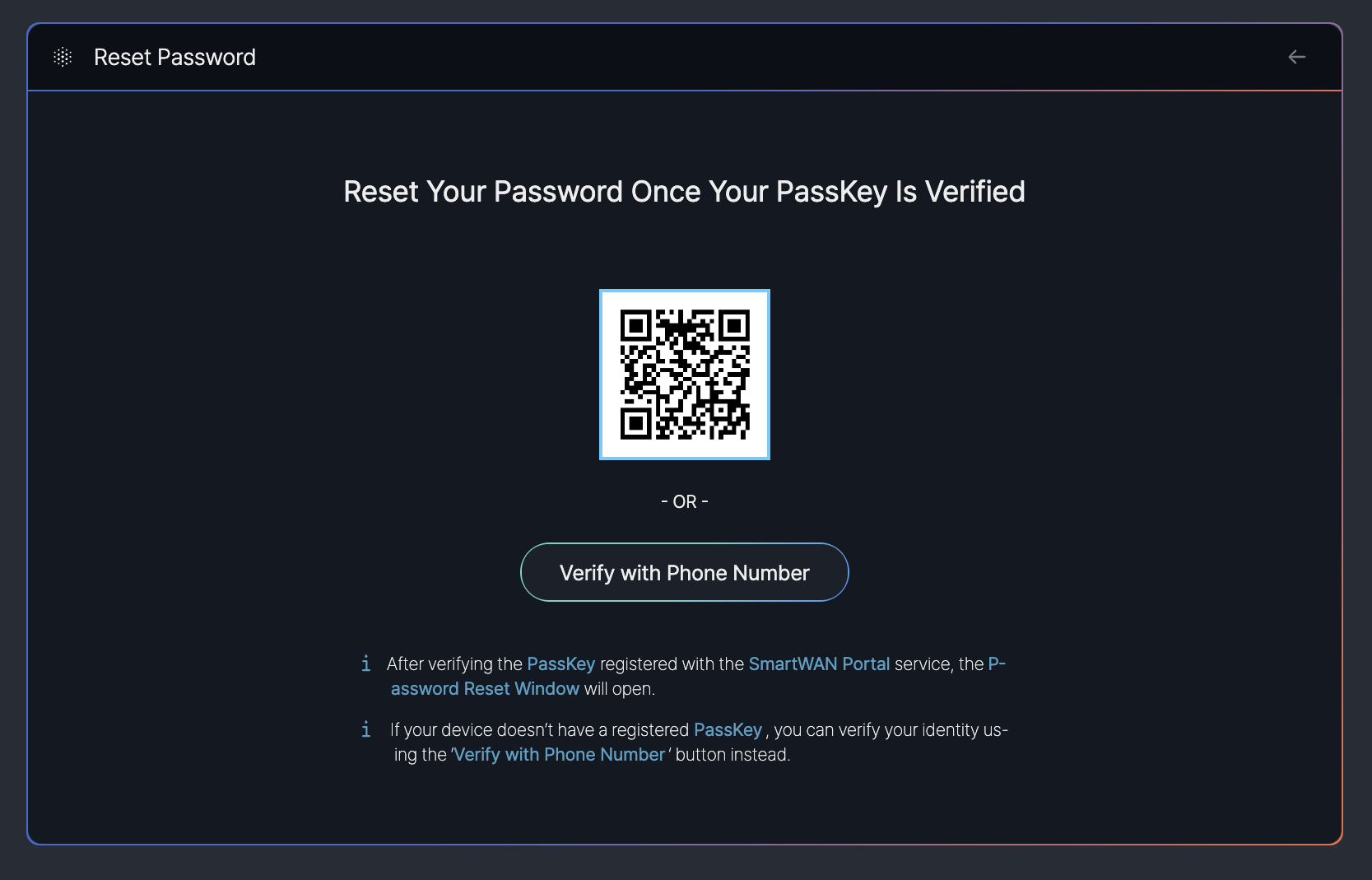
PassKey Verification:
- QR Code: A QR code is displayed for users to scan with a device that has a registered PassKey, enabling secure verification prior to password reset.
- Verify with Phone Number Button: An alternative "Verify with Phone Number" button is provided for users whose devices do not have a registered PassKey.
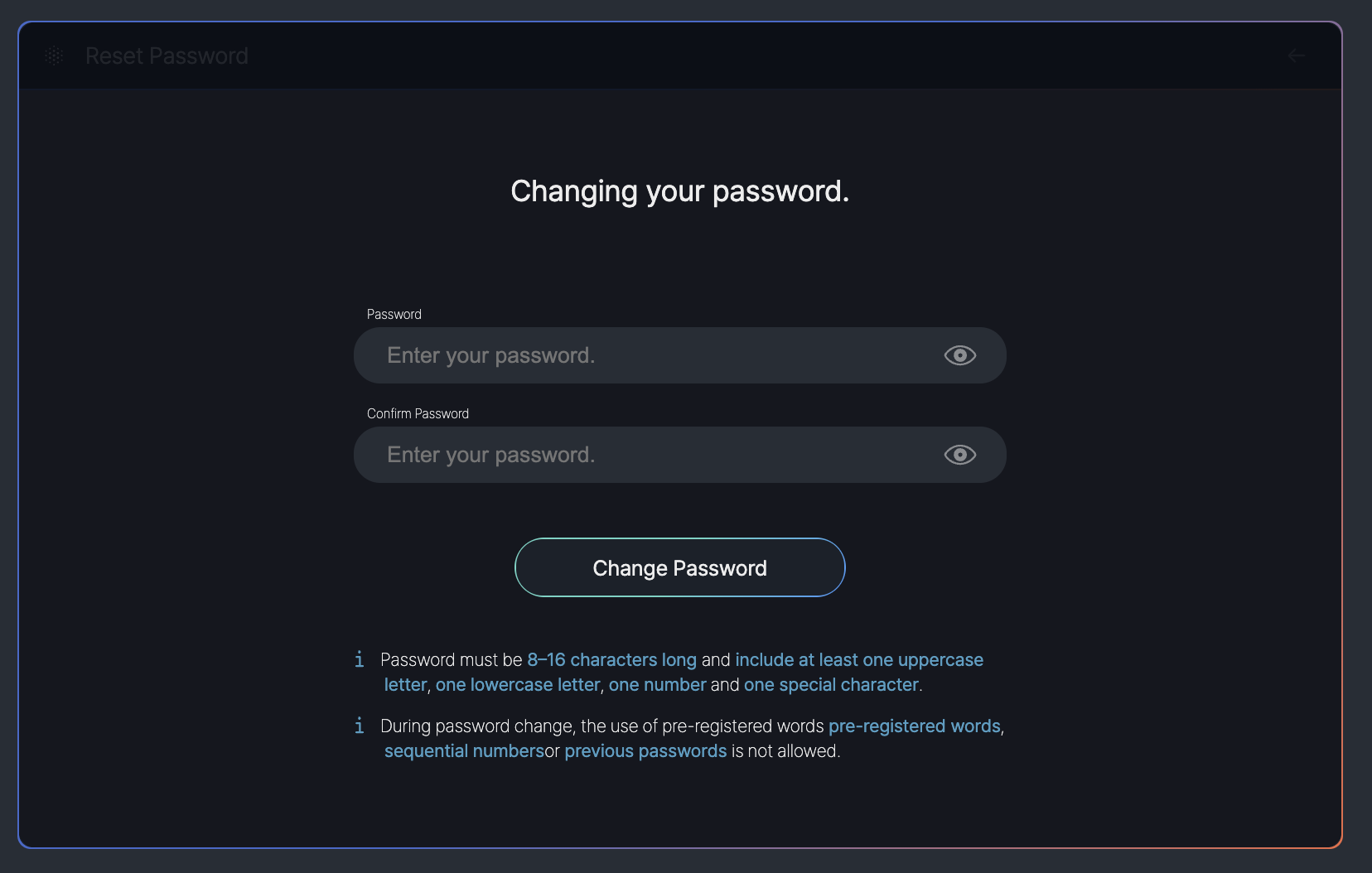
Once the user’s identity is successfully verified using a PassKey or phone number, the SmartWAN Portal provides a screen to change the password. This screen allows users to set a new password following the specified guidelines.
Request an Account
After selecting the "Request an Account" option from the "Additional Login Services Menu" on the SmartWAN Portal, users are directed to the following screen to verify their identity before resetting their password.
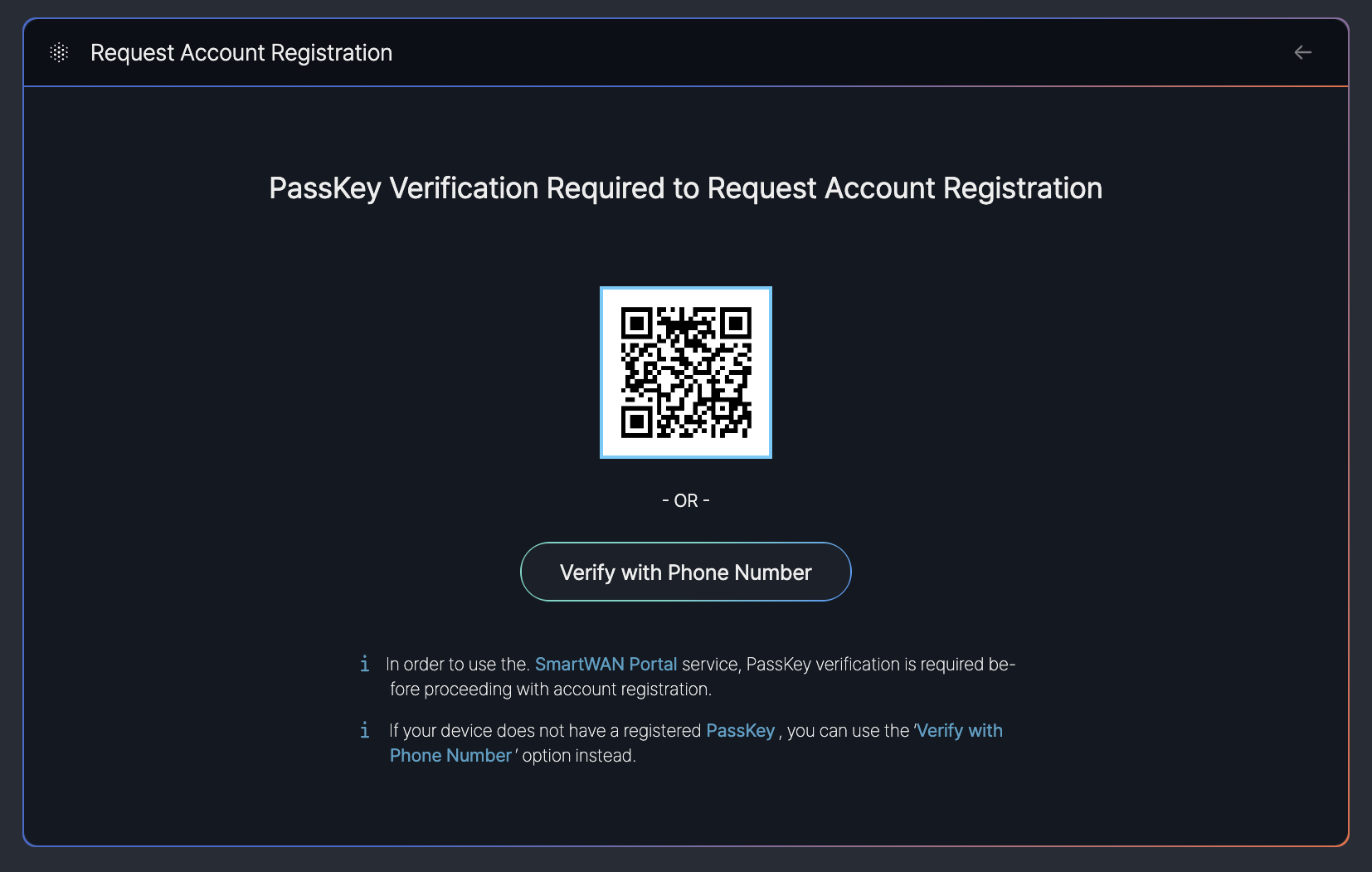
PassKey Verification:
- QR Code: A QR code is displayed for users to scan with a device that has a registered PassKey, enabling secure verification prior to request an account.
Alternative Option:
- Verify with Phone Number Button: An alternative "Verify with Phone Number" button is provided for users whose devices do not have a registered PassKey.
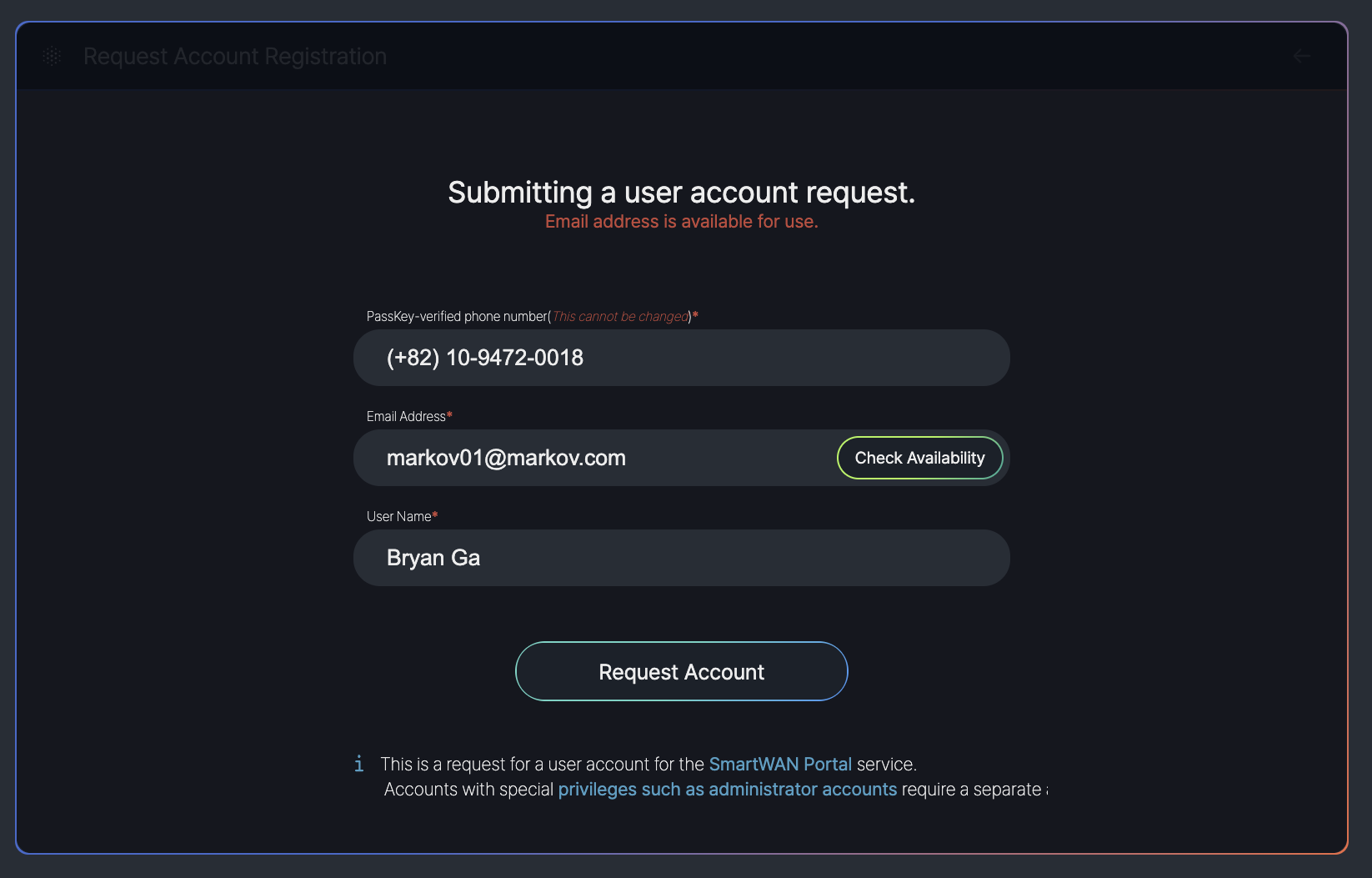
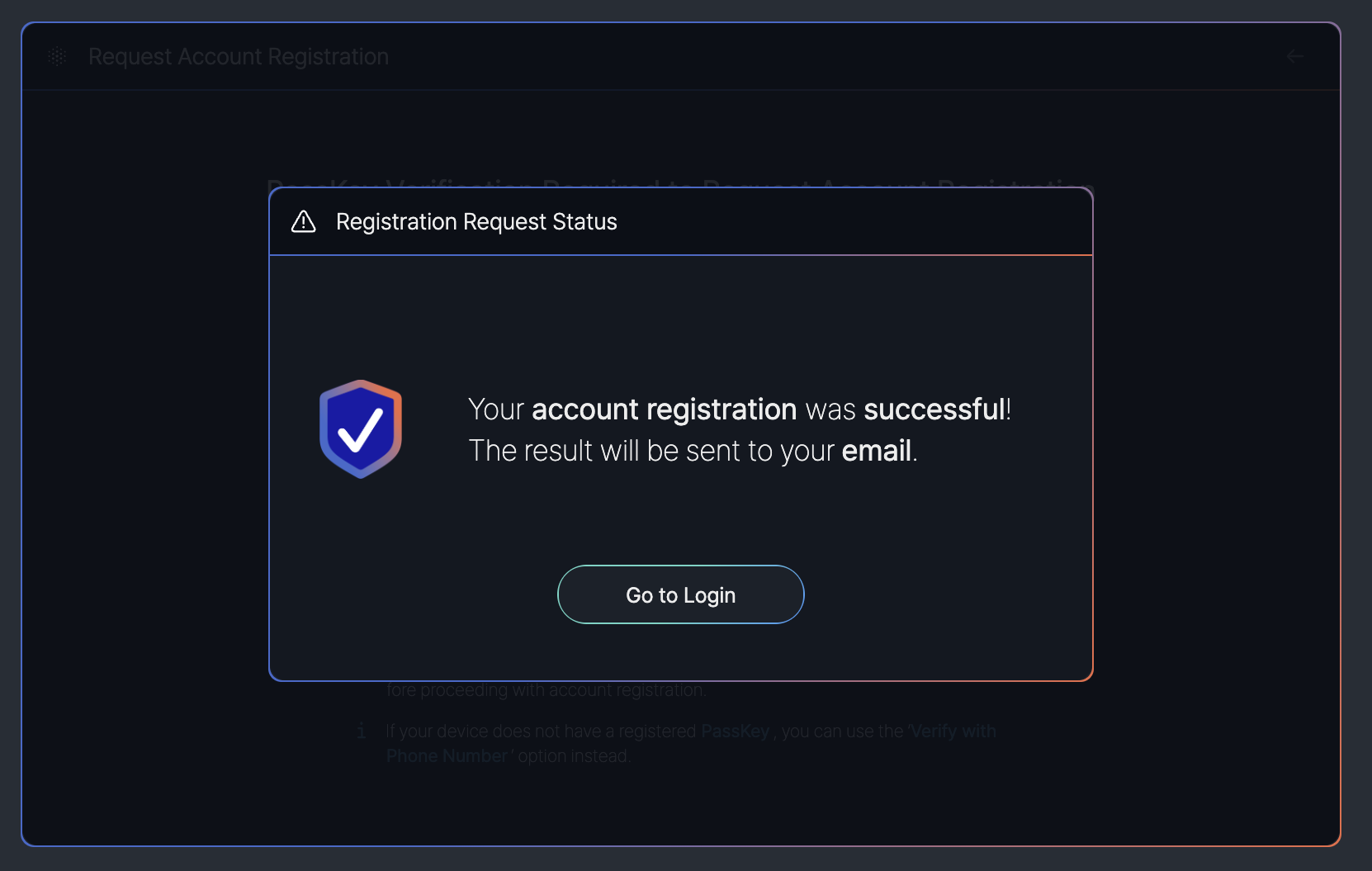
User Information and Notifications
After logging in, you can see the user information adjacent to the top-right corner.
Click on the user information to view additional settings menus and the current status of notifications. Options such as "Logout" and "Account Management" are available for the user to sign out or manage their account settings.
