
Home Screen
Some features described above are currently in the prototype stage and are scheduled for future implementation.
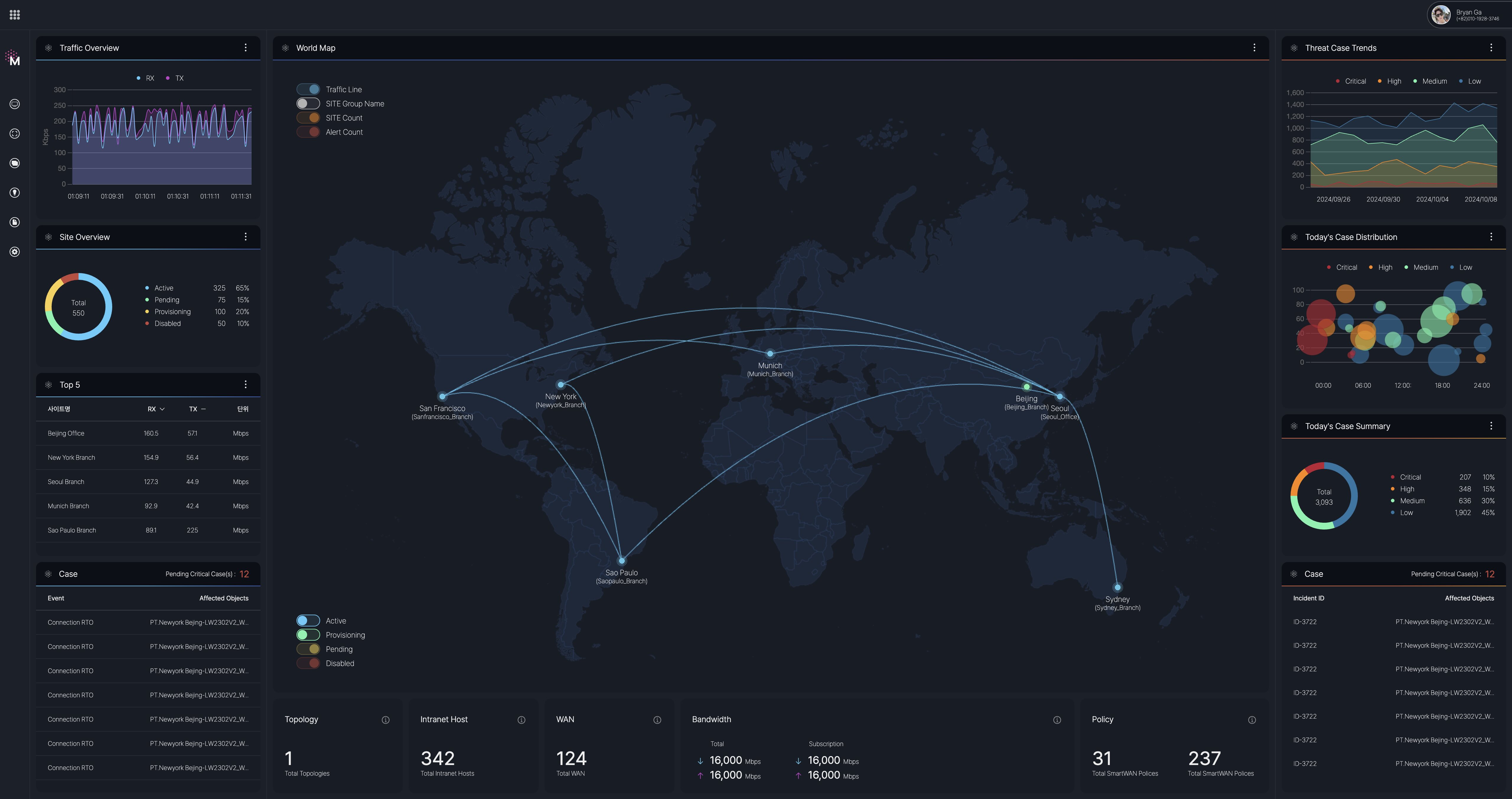
Upon logging in to the SmartWAN Portal, the Home Screen automatically appears, providing a comprehensive overview of network and security events across locations worldwide.
Map Submenu
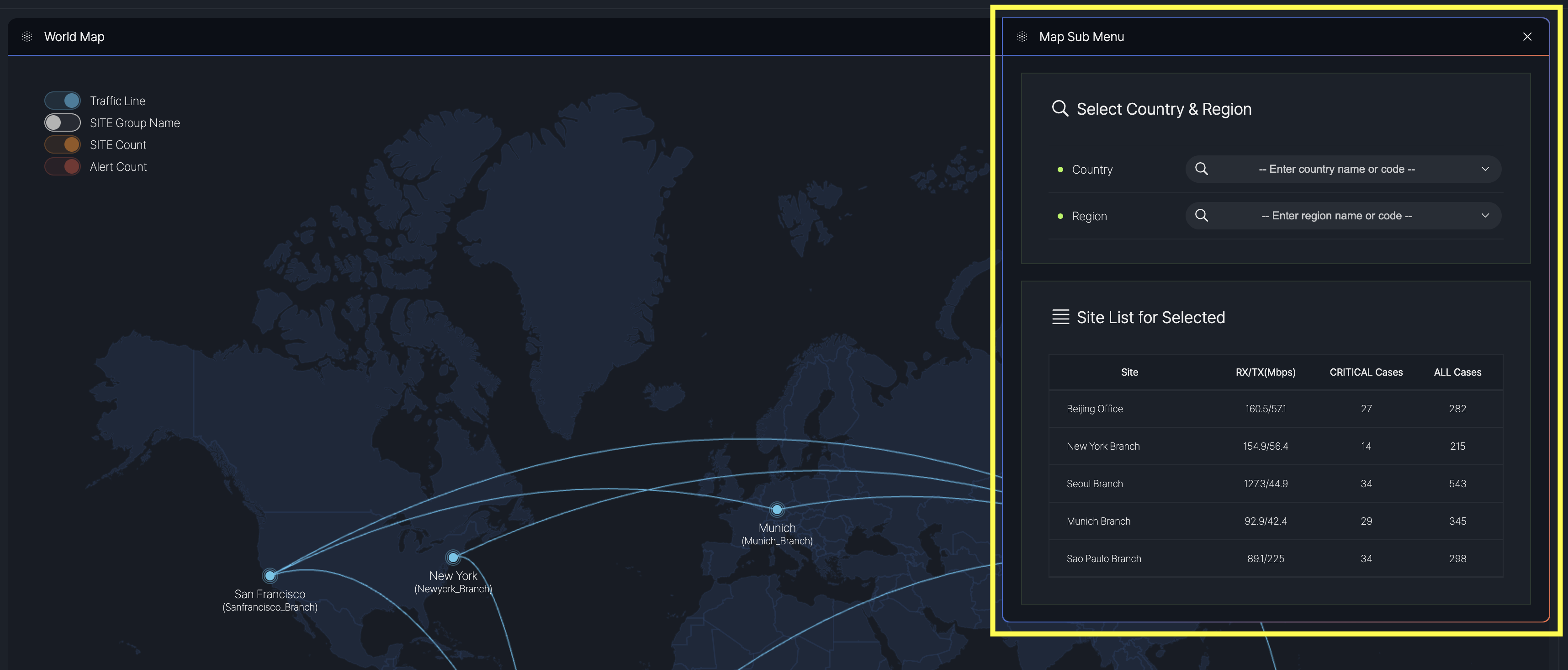
After logging in to the SmartWAN Portal, the Home screen displays the world map by default, featuring a world map in the "Map View." On the right side of the map, users can access additional options through the Map Submenu.
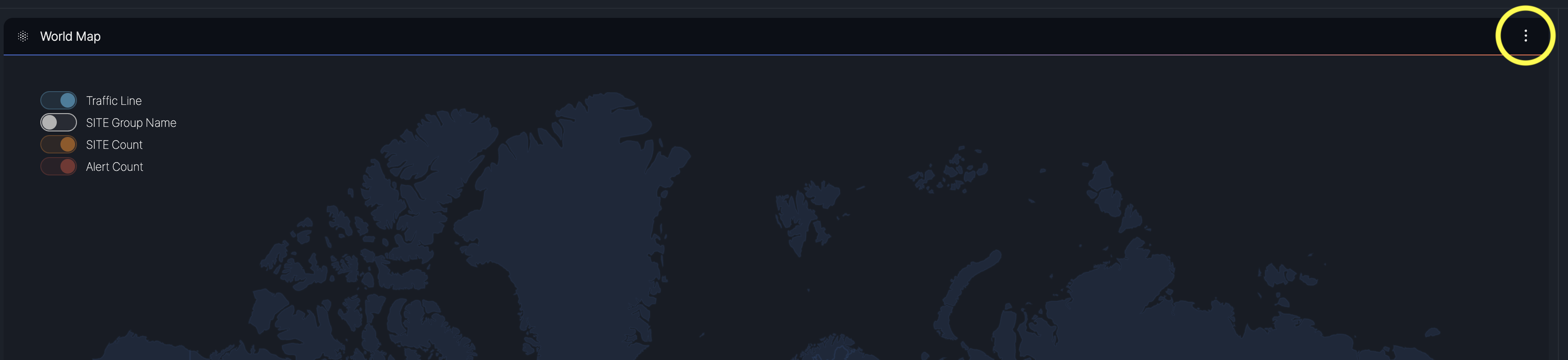
Click the vertical "⋮" (three dots) icon to open the Map Sub Menu. This menu allows users to filter and view site information based on specific criteria
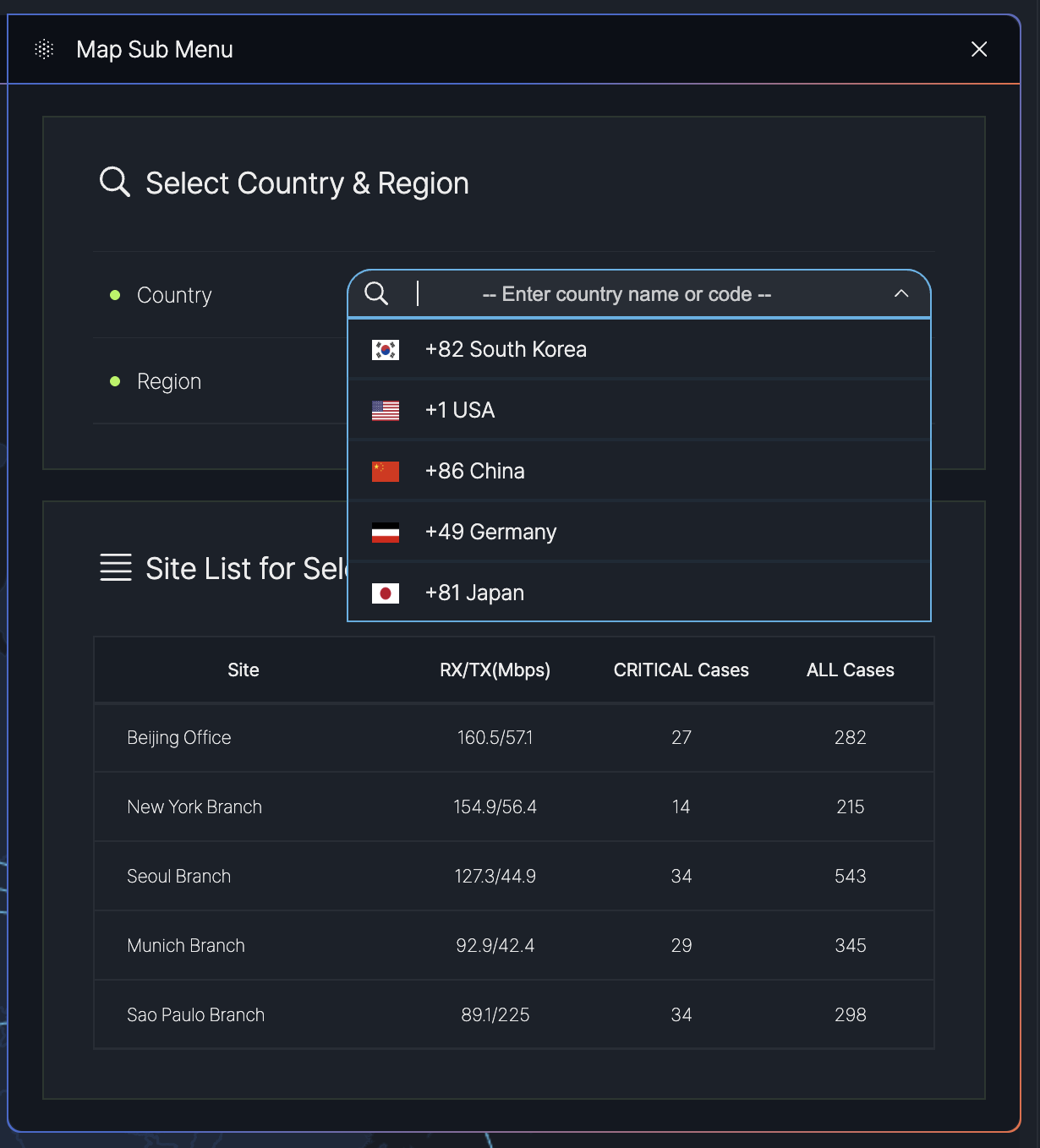
Filtering Sites by Country and Region
- Select Country & Region:
- Country: A dropdown menu to select a country (e.g., South Korea, USA, China, Germany, Japan).
- Region: A dropdown menu to select a region within the chosen country (e.g., USA > California).
- Site List:
- After applying the country and region filters, a list of sites within the selected area is displayed.
- The list includes columns such as:
- Site: Name of the site (e.g., Head Office, New York Branch).
- RX/TX (Mbps): Network traffic data for receive (RX) and transmit (TX) in Mbps.
- Critical Cases: Number of critical cases associated with the site.
- All Cases: Total number of cases for the site.
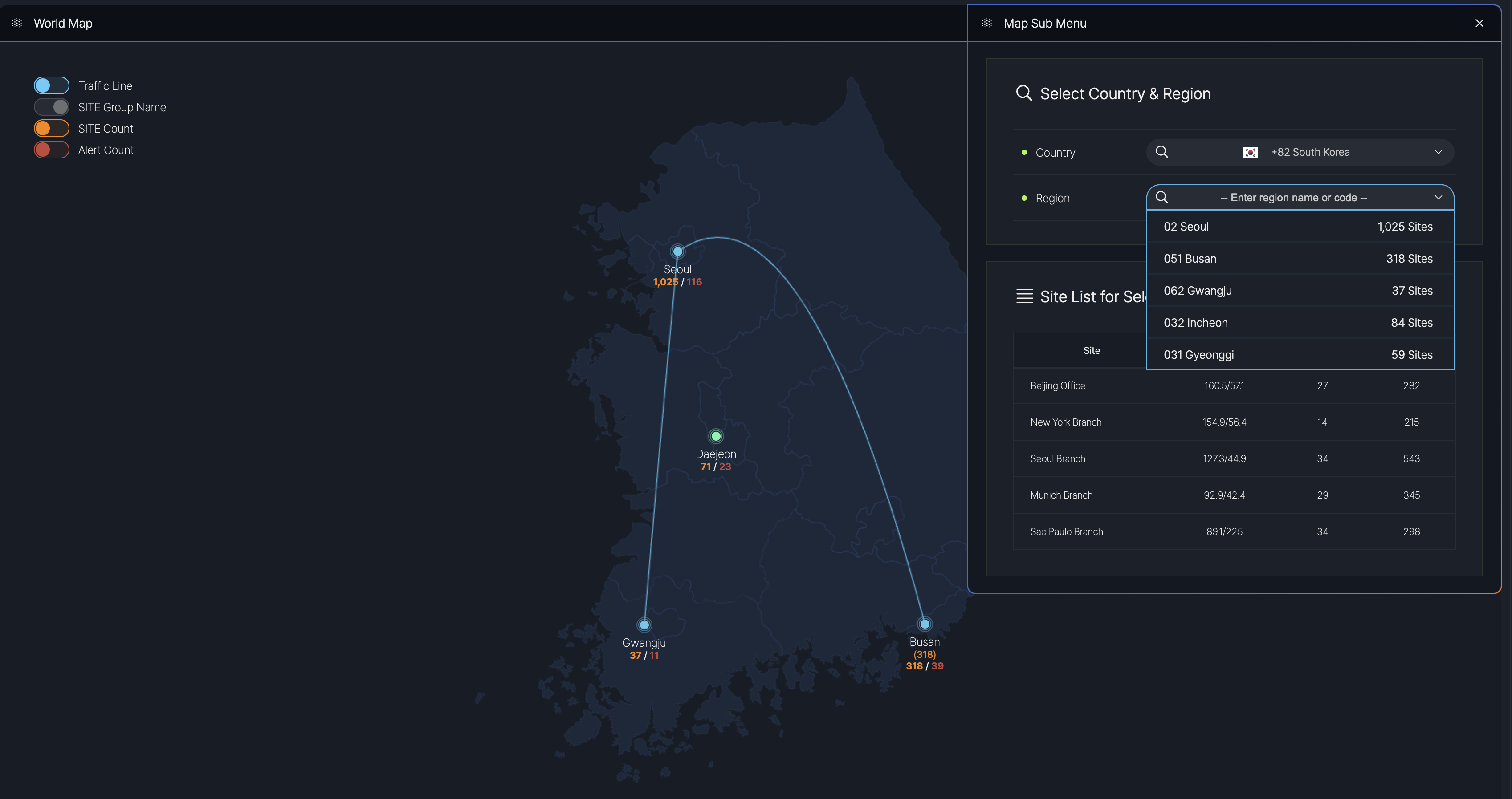
The image above shows the Map Sub Menu with the country filter set to South Korea and the region dropdown expanded, displaying available regions. The map and site list reflect the filtered view for South Korea, with detailed metrics for each site.